

Power BI Impact Analysis: How to See What Breaks Before You Change a Dataset
The failure usually runs like this (a composite sketch, not a specific case). Someone on the data team tidies a column name, or corrects a measure that was slightly off, and publishes on a Tuesday. On Thursday a department head asks why one card in their report is blank. The report sits in a workspace the data team cannot open, and its builder has since moved to another team.
A shared semantic model is good for consistency and bad for blast radius. Everything connected to it depends on it, and the model keeps no list of who is connected. (Power BI called these “datasets” until November 2023, and some places still do, which I will point out where it matters.)
This article covers three things: what Power BI tells you natively, the specific places where that stops short, and a manual process you can run today. There is a script, a set of DAX queries, a worksheet and a checklist, all linked below. None of it requires buying anything.
What Power BI shows you natively
There are two native tools, and they build on each other.
Lineage view. Every workspace has one. Open the workspace list, use the arrow next to View and choose Lineage. It draws the data sources, gateways, semantic models, dataflows and reports in the workspace and their external dependencies. Model cards show the last refresh and whether the model is certified or promoted. You need a Pro license and an Admin, Member or Contributor role. Viewers cannot switch to it.
Semantic model impact analysis. You open it from the model’s card in lineage view. It reports the number of workspaces, reports and dashboards that might be affected, and for each one the number of distinct viewers and views over the last 30 days (excluding the current day). It also has a Notify contacts link that emails the contact lists of the affected workspaces. When you republish a changed model from Power BI Desktop, you get a summary of potential impact and a link to the full view. Microsoft says plainly that this indicates potential impact, not necessarily breakage. (Microsoft Learn: semantic model impact analysis)
Use both first. They answer “which reports are connected to this model, in which workspaces, and does anyone look at them”.
| Lineage view | Semantic model impact analysis | |
|---|---|---|
| Question it answers | What is connected to what, in this workspace and just beyond it | Who downstream could be affected, and how much they use it |
| Needs | Pro, and Admin, Member or Contributor role | Write permission on the model |
| Shows | Sources, gateways, models, reports, last refresh, certified or promoted | Workspace, report and dashboard counts, viewers and views for 30 days, notify contacts |
| Items you cannot access | Not described | Listed as “Limited access”, though counts include them |
Two details from the Learn page are easy to miss. You cannot run impact analysis on an external model shown in lineage view; you have to go to the workspace that owns it. And usage metrics are not supported for personal workspaces.
Where they stop
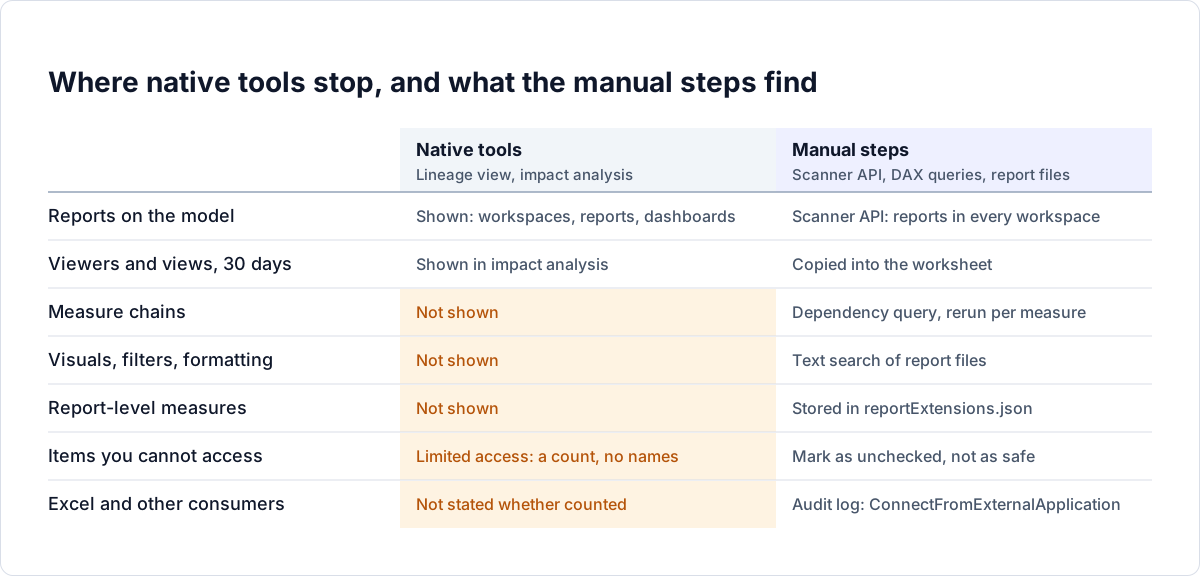
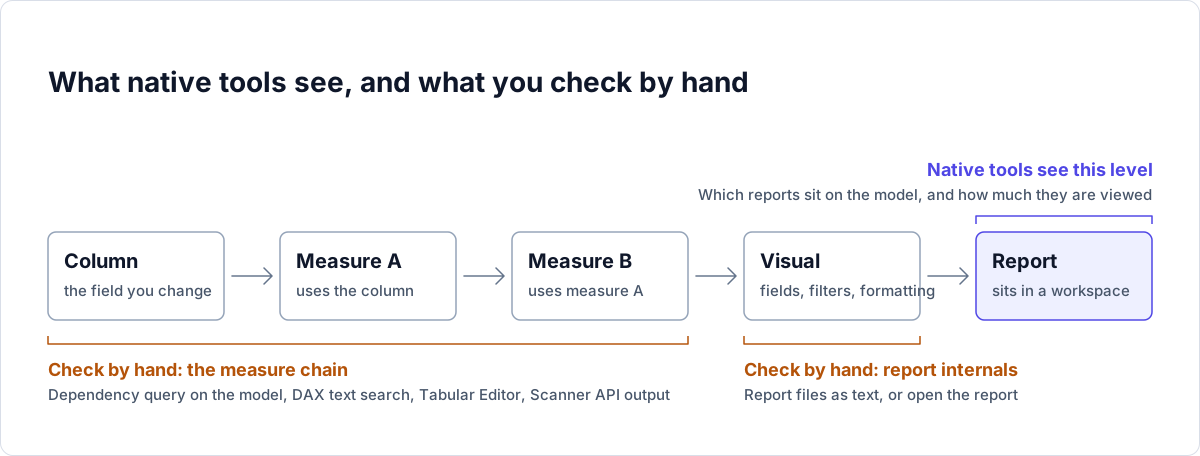
Neither page describes anything below the report level. They tell you who depends on the model. They do not tell you whether a given visual uses the column you renamed, or whether the measure you edited feeds a card on page three. I would plan around these gaps:
- Measure chains. One measure calls another, which calls a third. A change to the bottom one ripples upward, and none of that appears in a workspace diagram.
- Report internals. Visuals, filters, slicers, conditional formatting rules and sort-by settings can each name a field directly.
- Report-level measures. A report live connected to a published model can hold its own measures. They are stored in the report, not in the model, so a query run against the model will not list them. In a PBIR project’s report folder they sit in
reportExtensions.json. - Names you cannot see. Items in workspaces you cannot access appear as Limited access. You get a count and a mailing list, not a name to call.
- Consumers outside a report. Excel PivotTables, Analyze in Excel workbooks and other tools can connect to a model. XMLA connections from external applications are logged in the Power BI audit logs as
ConnectFromExternalApplication, which is where I would look for them. Neither impact analysis page says whether Excel workbooks or paginated reports are counted, so confirm in your tenant by checking a model you know has them.
If you have used Tableau, the same distinction between workbook-level and field-level impact applies. It is covered in the Tableau impact analysis guide. The Power BI version of the problem has its own twist: the model and the report are separate files with separate owners, and the report keeps its own formatting logic.
A manual method that works
1. Inventory the tenant with the Scanner API
If you are a Fabric administrator, or can get a service principal enabled for the admin APIs, the Scanner API returns metadata for workspaces across the tenant: items, owners, endorsement, and for semantic models the tables, columns, measures and, with the right settings, the DAX and Power Query expressions. (Microsoft Learn: metadata scanning)
The flow, with the limits Learn lists on each operation (checked 2026-10-19; check again before a large run):
| Step | Call | Documented limit |
|---|---|---|
| List workspace IDs | GET /admin/workspaces/modified (optional excludePersonalWorkspaces) | 30 requests per hour |
| Start a scan | POST /admin/workspaces/getInfo with 1 to 100 workspace IDs in the body | 500 requests per hour, 16 simultaneous |
| Check the scan | GET /admin/workspaces/scanStatus/{scanId} | 10,000 requests per hour |
| Get the result | GET /admin/workspaces/scanResult/{scanId} | 500 requests per hour, result available for 24 hours |
The getInfo call takes query parameters lineage, datasourceDetails, datasetSchema, datasetExpressions and getArtifactUsers. To get measure names and DAX you set datasetSchema and datasetExpressions, and a Fabric admin must have enabled two tenant settings first: “Enhance admin APIs responses with detailed metadata” and “Enhance admin APIs responses with DAX and mashup expressions”. Authentication is either a delegated admin token or a service principal with no admin-consent-required Power BI permissions on the app. Fabric admins set these up under metadata scanning; the setup page walks through it.
For dependents, the useful fields are on each report: datasetId, and datasetWorkspaceId, which Learn says is returned only when the model sits in a different workspace from the report. That pair is exactly the cross-workspace link that is hard to see from the portal. Semantic models also carry upstreamDatasets, which catches models built on other models.
I wrote a script that runs this flow and writes a CSV with one row per semantic model and dependent: scan_semantic_model_dependents.py. It uses only the Python standard library and reads credentials from the environment variables PBI_TENANT_ID, PBI_CLIENT_ID and PBI_CLIENT_SECRET. Add --measures measures.csv for a second file of every measure and its expression, and set PBI_WORKSPACE_IDS for a small first run.
What I tested, and what I did not: I checked the syntax and ran the row-building logic against a small made-up scan result. I have not run it against a real tenant, because I do not have admin access to one to test with. Treat your first run as a test on a handful of workspaces and compare the output with lineage view for a model you know.
2. Find the measure chain inside the model
You need to know which measures reference the column or measure you are changing, then which measures reference those. Recent DAX has functions for this, and Learn documents them for use in DAX queries: INFO.VIEW.MEASURES (name, table, expression), INFO.COLUMNS, and INFO.DEPENDENCIES, which returns a row for each dependency with columns such as OBJECT_TYPE, TABLE, OBJECT, REFERENCED_OBJECT_TYPE, REFERENCED_TABLE and REFERENCED_OBJECT. (Microsoft Learn: INFO.DEPENDENCIES)
Run them in DAX query view in Power BI Desktop, or choose Write DAX queries on a published model if you have write permission and the workspace setting allows it. Caveats from Learn: INFO.VIEW.MEASURES only shows the expression to users with write permission on the model, and not when you are live connected in Desktop; permissions for the other INFO functions depend on the host; and INFO.TABLEPERMISSIONS has the same write permission and live connection restriction. If you only have Build permission on a model, these queries will not give you what you need, so ask the model owner to run them. Learn does not say how these functions behave across import, DirectQuery or composite storage modes, so check your first result on your own model.
The file dax-impact-queries.dax has five ready queries: all measures with expressions, a text search of expressions for a name, an exact dependency lookup for a table and object, calculated columns with expressions, and row-level security filter expressions that mention a name. For one level of the chain, run the dependency query for your column. For every measure it returns, run it again with that measure as the target, until nothing new appears. Text search is the fallback and over-matches short names, so confirm what it finds against the dependency list. Role filters, calculation groups, field parameters, perspectives and sort-by columns can all name a field. I found no Microsoft page saying the dependency function covers every one of them, so for those search by name rather than trusting an empty dependency result.
I have not executed these queries against a model. I wrote them from the output columns Learn documents, so check the first result against a measure you know before trusting the rest.
If you would rather not write queries, two tools do the same job and I recommend both. Tabular Editor has a DAX Dependencies view, and exposes the same information to scripts as DependsOn and ReferencedBy properties (Tabular Editor docs). DAX Studio has a DMV pane, so over the XMLA endpoint you can run SELECT * FROM $SYSTEM.DISCOVER_CALC_DEPENDENCY, the schema rowset behind the dependency function. XMLA access needs a workspace on Premium, Premium Per User, Embedded or Fabric capacity, and Learn notes that DMVs there are limited to those that need database admin permission. Models that are themselves a live connection to another Power BI semantic model are not accessible through the XMLA endpoint, so for those you query the model they point at. It also notes that the dependency rowset does not include M dependencies for models with enhanced metadata, such as merged queries and M parameters, so check Power Query by hand if you are changing a source column.
3. Look inside the reports
This is the slow part, and the part no model query can do, because the facts live in the report file.
When you save a report as a Power BI Project (PBIP) with the PBIR format, each page, visual and bookmark becomes its own JSON file. Learn says visual.json holds the visual’s query and formatting, that PBIR is generally available and the default format, and lists “easy find and replace across multiple reports files” as an intended use. So a plain text search for the field name across a folder of project reports finds the visuals, filters and formatting that name it. Bookmarks are separate files too and hold target visuals and filters, so they are covered by the same search, as are page-level and report-level filters. Report-level measures are in reportExtensions.json. Reports still in the older PBIR-Legacy format keep their definition in a single report.json instead. (Microsoft Learn: project report folder)
You may not hold the files. Three ways to get at them: ask the owner to save a PBIP copy, use Fabric Git integration if the workspace is connected, or call the Fabric REST API operation Get Report Definition (POST /v1/workspaces/{workspaceId}/reports/{reportId}/getDefinition). That call needs read and write permission on the report, may run as a long running operation, and is blocked for reports with an encrypted sensitivity label. For reports you cannot export at all, the fallback is to open them and look, starting with the busiest ones.
4. Rank by use, then test
Impact analysis already gives you viewers and views per report for 30 days. Put those numbers next to each affected report in the worksheet below. A report nobody opened this month can wait for a notification. The finance pack used on the first working day cannot.
Then test somewhere safe. A deployment pipeline copies content from one stage to the next, keeps the connections between copied items, applies your deployment rules, and does not copy data. Learn also lists what is not copied, including permissions, role assignments, refresh schedules, data source credentials, endorsement settings, app content and personal bookmarks, so check the target stage after a deployment. Fabric requires the workspaces to be on a capacity, so a pipeline is not an option on Pro-only workspaces. On PBIR I cannot give you a clean answer. The limitations list of the deployment process page, when I read it on 2026-10-19, still said “PBIR reports aren’t supported”. The report folder page, read the same day, says PBIR is generally available and the default format, and that editing and saving an older report converts it to PBIR. The deployment pipelines overview lists reports among supported Power BI items (marked preview) without mentioning a format restriction. Those pages disagree, and the pipeline line may simply be out of date, but I could not confirm that. Before you plan a test stage around pipelines, deploy one real PBIR report through the pipeline and see what happens. If it fails, the fallback is a separate test workspace that you publish to by hand. (Microsoft Learn: deployment pipelines process)
5. Notify people with a date
Use Notify contacts in impact analysis for the workspace contact lists, and a direct message to the owner of every high-use report. Say what is changing, the date, what to do, and who to ask. Learn notes Notify contacts is unavailable for models in classic workspaces.
Worked example: renaming one column
This is a constructed illustration, not a client story. The names are invented.
Suppose the model has a column Sales[Order Qty] that the data team wants to rename Sales[Quantity]. In the model:
[Total Units]isSUM(Sales[Order Qty]).[Units per Order]isDIVIDE([Total Units], [Order Count]).
Two reports sit on the model, in two different workspaces. In one of them a table visual applies a color scale to cells using the Order Qty field directly.
Here is what each layer tells you:
| Step | What you see | What is missing |
|---|---|---|
| Lineage view | The model, and the two reports in their workspaces | Nothing about fields |
| Semantic model impact analysis | 2 workspaces, 2 reports, viewers and views for 30 days | Which fields each report uses |
Dependency query on Sales / Order Qty | [Total Units] references the column | [Units per Order] does not appear yet |
Same query on Sales / Total Units | [Units per Order] references [Total Units] | That is the whole measure chain |
Text search of the report’s PBIR files for Order Qty | The visual whose color scale names the column | Nothing, if you have the files for both reports |
The first two rows are what the portal gives you in a minute. Rows three to five are the manual work, and the conditional formatting rule is the one nobody would have guessed. Only then can you say the change touches two measures, one visual in one report, and plan a fix. I would treat each as a break to test, rather than assume how Power BI will carry a rename through.
The change-impact worksheet
Keep one row per changed object. The CSV has 20 columns, including a change ID, who notified and when, deprecation and removal dates, test environment, tested by and approved by: change-impact-worksheet.csv. It includes one example row, marked as a constructed illustration. These are the columns that carry the analysis:
| Column | What goes in it |
|---|---|
| object_changed | Sales[Order Qty], or the measure name with its home table |
| object_type | column, measure, table, relationship, RLS role, parameter |
| direct_dependents | Measures and calculated columns from the dependency query |
| measure_chain | The path, such as Total Units then Units per Order |
| reports_affected | Report names with the visual, filter or formatting that uses the object |
| report_workspace | Where the affected report lives |
| report_owner | A person, not a team mailbox |
| last_viewed_or_views_30d | From impact analysis |
| must_fix_before_change | Yes or no, from your prioritization |
| notified_on | Date and who sent it |
| test_result | What you checked in the test copy, and what you saw |
Pre-change checklist
- [ ] The change is written down: object, old name or definition, new name or definition, reason.
- [ ] Impact analysis for the model has been opened and its counts recorded.
- [ ] The Scanner API output, or the lineage view, lists every cross-workspace report.
- [ ] The dependency query has been run for the object and for each measure it returns.
- [ ] Calculated columns, calculation items, RLS roles and report-level measures have been checked.
- [ ] Excel workbooks, paginated reports and dataflows that use the model have been looked for (audit log, and the report type in the Scanner API output).
- [ ] Every affected report has an owner and a views figure in the worksheet.
- [ ] Reports you could not inspect are marked as unchecked, not as safe.
- [ ] The change has been deployed to a test copy and a sample of real reports repointed at it.
- [ ] Owners have been notified with a date, and the notification is logged.
- [ ] A rollback is written down: how to restore the old name or definition, and who does it.
Deprecate before you delete
For anything a report might name directly, add the new object next to the old one, move people across, and remove the old one last. You choose every duration in this table, based on how often your reports refresh, how many owners you have and how long a typical report sits unused.
| Stage | What you do | Exit condition | Your duration |
|---|---|---|---|
| Announce | Notify owners with the plan and a contact | Owners acknowledged | |
| Add | Create the new column or measure and leave the old one in place | New object works in a test copy | |
| Mark | Put a deprecation note in the old object’s description and, if you wish, hide it from the field list | Description reads “Deprecated, use X” | |
| Migrate | Repoint your own measures, then ask report owners to repoint theirs | Dependency query and report search show no references | |
| Watch | Re-run the scan and impact analysis for any new dependents | No new references appear | |
| Remove | Delete the old object | Rollback is documented |
Hiding a field is not the same as removing it, so check that existing reports still render. A shared model should also have a named owner, and thin reports on a certified model keep the dependency graph shallow. Certification is set by reviewers your Power BI administrator authorizes. Promotion needs write permission on the workspace.
Where Rapid Lens fits
The manual process above works, and for a handful of models it is enough. It gets heavy with hundreds of reports, because step 3 does not scale and the scan has to be rerun and re-read for every change.
Rapid BI Catalog connects to Power BI Service and maps dependencies across semantic models, tables, columns, calculated columns, measures, calculation items, hierarchies, row-level security roles, reports, pages, visuals and bookmarks. You pick the column or measure you plan to change and see what depends on it. RapidDox for Power BI is a desktop application that documents a Power BI Desktop (.pbix) file, including DAX measures, calculated columns, data sources, custom SQL and report dependencies, and it does not connect to Power BI Service. Both work on metadata only and do not read the rows in your tables.
Written by Natraj, Founder, RapidDox & Rapid Lens. 25 years of experience in data and business intelligence.