

The usual first question in a Tableau to Power BI migration is “how many dashboards do we have?” Few teams can answer it with confidence. The Tableau site has workbooks from people who left, copies named “Final v3”, and a handful of reports that finance opens once a quarter and would notice within a day if they vanished. If you start rebuilding before you can tell these apart, you pay to migrate the clutter and you still miss the one report that matters.
This article is the sequence I would follow for the hands-on part of a migration, after the decision to move has been made. If you are still deciding, read the decision guide first. Everything here can be done without buying anything. Two files go with it: an inventory template and a Python script that pulls the workbook list from the Tableau REST API (it fills the first few columns only; the rest is manual work). The script needs Python 3 and the requests package.
Microsoft publishes its own Power BI migration series, written for any third-party BI tool. It defines five stages: gather requirements and prioritize, plan deployment, proof of concept, create and validate content, deploy, support and monitor. It is not Tableau specific, so it says nothing about LODs or workbook XML. What follows is the Tableau-side detail that series leaves out, ordered in seven steps.
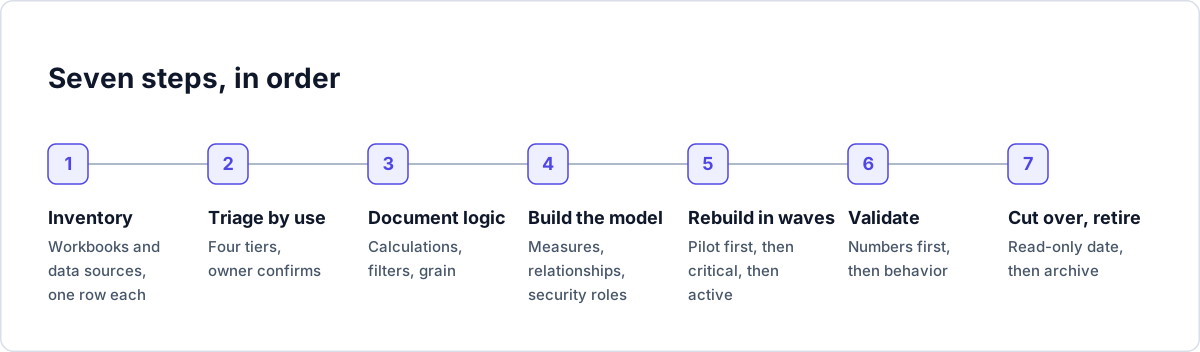
Step 1. Build the inventory
You need one row per workbook and published data source. The template has these columns: workbook, project, owner, last published, last viewed, views in the last 90 days, data sources, connection type, extract or live, custom SQL, calculated field count, LOD count, parameters, actions, row-level security, tier, decision, target Power BI workspace, validator, sign-off and notes. The first nine come from the platform. The next six (custom SQL through row-level security) come from reading the workbook. The rest are decisions you record. The three example rows in the CSV are marked EXAMPLE and are fake.
There are four places to get the data.
REST API for the list. The Query Workbooks for Site call returns, per workbook, the name, content URL, created and updated timestamps, and child elements for the project and the owner. It pages at up to 1,000 items per request (default 100). The owner comes back as an id only, so you need the users list to turn ids into names. The Query Workbooks for Site reference has the exact response. The script in the download does both calls and writes a CSV. Listing users needs an account that is allowed to see them, so run it as a site administrator.
Metadata API for dependencies. This is the GraphQL API that knows which workbooks sit on which databases and tables. On Tableau Server it is installed but disabled by default. A server admin turns it on from the initial node with tsm maintenance metadata-services enable, which requires Tableau Server 2019.3 or later and briefly restarts some services. The endpoint is /api/metadata/graphql, and it uses the same authentication token as the REST API (Get Started). The documented schema lists downstreamWorkbooks and upstreamDatasources on both databases and tables, so the “what depends on this database” question looks like this:
query WorkbooksOnDatabase {
  databases(filter: { name: "adventureworks" }) {
    name
    downstreamWorkbooks {
      name
    }
  }
}
Tableau’s own example queries databases and tables; I swapped in downstreamWorkbooks from the schema page. Run it in the GraphiQL explorer on your own server (https://<server>/metadata/graphiql/) before relying on it, because the schema differs between versions.
Usage numbers. On Tableau Cloud, Admin Insights is a project of pre-built data sources, including TS Events (audit data such as view access), TS Users and Site Content. By default it keeps up to 90 days of data, or up to 365 days with Advanced Management (Tableau Help, Admin Insights). Admin Insights is Cloud only. On Tableau Server use the built-in administrative views instead. Stale Content, in the next step, is the one I checked.
The workbook file itself. Calculated field counts, LOD counts, parameters and actions are not in the list APIs in any convenient form. A .twb is XML, so a script can count them, or you can open the workbook. That is slow, which is why you do it only for tiers one and two.
Step 2. Triage by use, not by opinion
Tableau’s Stale Content administrative view flags workbooks and data sources that have not been used within a window you choose. The window runs from 1 to 120 days, and you can tag up to 1,000 objects per batch (tagging arrived in 2020.3). With Advanced Management you can automate archiving (Stale Content).
The 120 day ceiling matters for migration. A report used at quarter close or once a year looks stale to this view, and it can look stale to any 90 day count too. Treat “no views” as a prompt for a conversation with the owner, not a verdict.
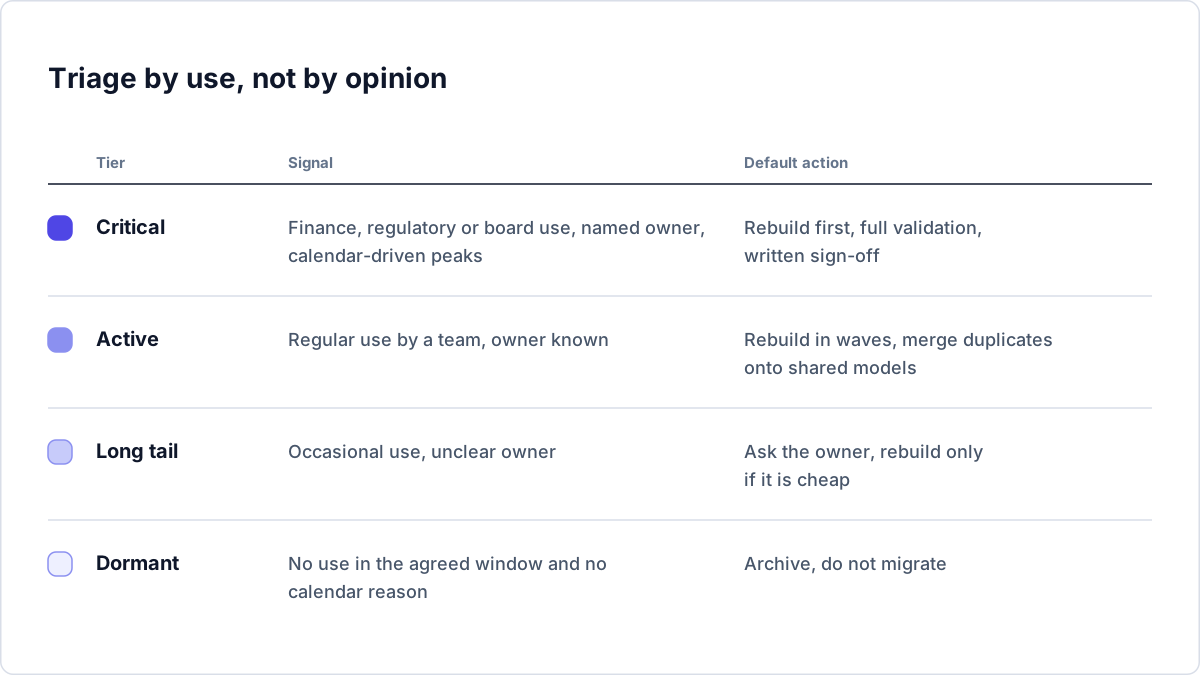
| Tier | Signal | Default action |
|---|---|---|
| Critical | Finance, regulatory or board use, named owner, calendar-driven peaks | Rebuild first, full validation, written sign-off |
| Active | Regular use by a team, owner known | Rebuild in waves, merge duplicates onto shared models |
| Long tail | Occasional use, unclear owner | Ask the owner, rebuild only if it is cheap |
| Dormant | No use in the agreed window and no calendar reason | Archive, do not migrate |
I set the window per estate rather than copying someone else’s threshold. Before anything is archived, email the owner with a date and an easy way to object. Silence by that date is a decision you can defend. Microsoft’s guidance makes the same point from the other side: migrate the business question rather than reproduce every report as it looks today, and consider eliminating legacy items that have not been used for some time.
Step 3. Document the logic before you touch it
For each tier one and tier two workbook, write down:
- Every calculated field, its formula, and the fields it references. Tableau calculations often reference other calculations, so build order matters.
- Every parameter and what it drives.
- Every filter, with context filters marked, since they change how FIXED expressions behave.
- What one row of the underlying data represents, and anywhere Tableau is aggregating without being asked.
- Every dashboard action.
- User filters and any row-level security.
The grain question is the one that gets skipped. Tableau aggregates to the level of the view, so a number can be right for years because of a grain nobody wrote down. Power BI will not infer it for you. Rebuild the logic from what the number is meant to be. Do not translate formulas line by line.
What lives outside the workbook
The workbook list does not show these, and each needs a decision before cutover.
| Item | What to do |
|---|---|
| Published data sources and extracts | Give each published data source its own row in the inventory, with an owner, because several workbooks depend on it. An extract refresh schedule becomes a Power BI scheduled refresh, or a source-side load. If the source is on-premises, Microsoft’s deployment guidance says a new gateway data source registration might be needed. |
| Tableau Prep flows | I know of no converter. Treat each flow as a data source to rebuild in Power Query, in a Power BI dataflow, or upstream in the warehouse. Microsoft suggests a dataflow when the same preparation would otherwise be repeated across many files. |
| Subscriptions and alerts | These belong to individual users, not to the workbook, so list them before cutover (on Tableau Cloud, Admin Insights has a Subscriptions data source). Power BI email subscriptions need a Pro or Premium Per User license, or a workspace on paid capacity, and subscribing others needs Pro or PPU plus a Contributor, Member or Admin role. Power BI data alerts can only be set on gauge, KPI and card tiles on a dashboard, and only the person who sets one sees it. Expect some Tableau alerts to have no equivalent. |
| Permissions | Tableau project and group permissions do not map one to one. Decide the Power BI workspace roles, app audiences and row-level security roles, and remember that RLS only restricts Viewers. |
| User communication | Say where the new content is, who to ask, and the date Tableau goes read-only. Microsoft’s guidance adds documentation, FAQs and a way to give feedback. |
Step 4. Map the features, then build the model
Treat this table as a prompt for design decisions, not a translation service.
| Tableau | Usual Power BI equivalent | What to check |
|---|---|---|
| Calculated field | DAX measure or calculated column | A measure is evaluated at query time in filter context. A column is stored per row. Pick on purpose. |
| FIXED / INCLUDE / EXCLUDE LOD | CALCULATE with ALLEXCEPT, REMOVEFILTERS, or a measure on a different grain | Different evaluation model. See the worked example below. |
| Parameter | What-if parameter, or a disconnected table read with SELECTEDVALUE | Parameters drive measures. Using one in a dimension calculation can give wrong values. |
| Data blending | Relationships in the model, or a Power Query merge | Needs explicit relationships. |
| Dashboard actions | Cross-filtering, drillthrough, bookmarks, buttons | Not identical. Redesign the interaction. |
| User filter / entitlement table | Row-level security roles | Re-test with real Viewer accounts. |
| NULL | BLANK | Not equivalent. See “What goes wrong”. |
On parameters, Microsoft’s what-if documentation says a parameter creates a measure holding its current value, and notes that parameters are designed for measures within visuals, and that a parameter used in a dimension calculation might be calculated incorrectly (Microsoft Learn, what-if parameters). If a Tableau parameter filters a dimension, expect to redesign it.
On modeling, build the shared model before the reports. Microsoft’s star schema guidance on Microsoft Learn says dimension tables filter and group, fact tables summarize, and fact tables should load at a consistent grain. Tableau let several workbooks each carry their own joins and calculations. If you copy that habit into ten Power BI files you have rebuilt the sprawl you were trying to leave. Microsoft’s series also encourages separating the data model from reports so the model can be reused.
Worked example: one FIXED LOD in DAX
Tableau’s own help gives this expression: {FIXED [Region] : SUM([Sales])}. It computes total sales per region regardless of other dimensions in the view, and shows the same value on every State inside a region. Tableau documents that FIXED expressions ignore view filters other than context filters, data source filters and extract filters.
Assume a Sales fact table, a Geography dimension with Region and State, and a Product dimension. A starting-point measure:
Region Sales (Fixed) =
CALCULATE (
    SUM ( Sales[Sales Amount] ),
    ALLEXCEPT ( Geography, Geography[Region] ),
    REMOVEFILTERS ( Product )
)
How it reads. CALCULATE evaluates the sum in a modified filter context. ALLEXCEPT removes every filter on the Geography table except the one on Region, so a State filter coming from the visual is dropped but the Region stays. REMOVEFILTERS ( Product ) clears product slicers, to mimic the way a FIXED expression ignores ordinary view filters. The percent of region is then DIVIDE ( SUM ( Sales[Sales Amount] ), [Region Sales (Fixed)] ).
Where results can differ from Tableau:
- ALLEXCEPT keeps filters that exist. If
Regionis on the visual, the Region filter is there to keep. If onlyStateis on the visual, there is no Region filter in context, and the measure returns the total across all regions for each state. Tableau computes the region of each row. Put the attribute on the visual, or design the model so the grain is explicit, and test both layouts. - Context filters. Tableau honors context filters inside FIXED. There is no single DAX twin. Decide for each one whether it is really a model-level filter, a slicer you keep by leaving it out of
REMOVEFILTERS, or a filter that should not exist. - Filters on other tables. The measure only clears
Productbecause that is what I told it to clear. A date slicer, a customer slicer, or RLS on another table still applies unless you handle it. Row-level security always applies, which is usually what you want, but it will differ from a Tableau extract that a developer built with a broader filter. - Relationships. Filters reach
Salesonly through model relationships. A missing or inactive relationship changes the answer without an error.
Microsoft’s CALCULATE reference lists the filter modifiers, including ALLEXCEPT and REMOVEFILTERS, and is short enough to read in full. I deliberately kept this to documented functions. For INCLUDE and EXCLUDE, and for FIXED on a dimension that is not on the visual, the right pattern depends on your model, and I would build it in a small test model and compare against Tableau before trusting it.
Step 5. Rebuild in waves
Start with one low-stakes dashboard so the team learns the tooling and agrees conventions: naming, folder structure, which workspace holds what. Then move to tier one while energy is high, then the active tier. Group by business unit within a wave. Dashboards for one team tend to share sources and logic, and you can retire that team’s Tableau access cleanly when the wave is done.
Use a validator who did not build the report. A builder checks what they meant to build.
Step 6. Validate the numbers, then the behavior
Microsoft’s migration series names four things to validate: data accuracy, security, functionality and performance. It also notes that it is more common than you might think to find an error in the legacy report, so you must be able to explain a difference, not only remove it. Here is the checklist I use per tier one workbook. Tier two gets the same list with less sampling.
| # | Check | How | Evidence |
|---|---|---|---|
| 1 | Totals match | Plain table visual in Power BI against the same view in Tableau, before any chart | Both screenshots with the data as-of time |
| 2 | Detail rows match | Sample rows across the highest, lowest and middle values | Row list with pass or fail |
| 3 | Filter combinations | At least five combinations, not only the default view | Combination list |
| 4 | Nulls and blanks | Rows with missing keys, empty strings and zero | Notes on how each is shown |
| 5 | Date boundaries | First and last day of a month, quarter, year and fiscal year | Pass or fail per boundary |
| 6 | LOD measures | Each converted LOD at several levels of the visual | Table of results |
| 7 | Security | Sign in as real Viewer accounts in each role, including one with no role | Screenshot per role |
| 8 | Interactivity | Slicers, drillthrough, bookmarks, buttons | Pass or fail list |
| 9 | Refresh | Scheduled refresh runs and lands before users need it | Refresh history |
| 10 | Performance | Opens in the service, not only in Desktop | Observed load time |
| 11 | Business sign-off | Named owner agrees in writing | Email or ticket reference |
Row-level security needs its own attention. Microsoft’s documentation says RLS restricts only users with Viewer permission, and does not apply to workspace Admin, Member or Contributor roles. A developer testing in their own workspace role sees everything. The Test as role feature uses your own identity when evaluating dynamic rules, so for external guests Microsoft recommends signing in as the actual guest user (RLS).
Step 7. Cut over, then retire
A one-page calendar. “T” is the date users are told Tableau becomes read-only. The offsets are starting points to stretch or shrink for your estate, not benchmarks.
| When | Action | Owner | Done when |
|---|---|---|---|
| T minus 4 weeks | Freeze changes to the Tableau workbook being replaced | BI lead | Change log closed |
| T minus 3 weeks | Final validation pass against the same data snapshot | Validator | Checklist complete |
| T minus 2 weeks | Business owner sign-off; send user notice with the date, link and who to ask | Owner, BI lead | Written sign-off on file |
| T minus 1 week | Security re-test with real accounts; confirm refresh schedule | Validator, Admin | Evidence saved |
| T | Publish the Power BI app or workspace link; redirect from the Tableau project; set Tableau content to read-only | BI lead, Admin | Redirect live |
| T plus 1 week | Check usage and support tickets; fix what the checklist missed | BI lead | Issue list triaged |
| T plus 4 weeks or later | Archive the Tableau workbook with its documentation; turn off access for that team | Admin | Archive confirmed |
Microsoft’s deployment guidance says a parallel run is commonly 30 to 90 days, and lists when to decommission: the agreed period has passed, every user has access to the new content, activity on the old report has died down, and no issue is hurting productivity. Treat the 4 week offset as the short end for low-risk content and run tier one longer. For rollback, keep the Tableau workbook read-only and intact until that point rather than deleting it. Microsoft’s page also suggests keeping earlier versions of Power BI files (SharePoint or OneDrive versioning works) so you can revert the other way.
Keep the documentation from Step 3 with the archive. It is the record of what each dashboard was meant to do, and you will want it the first time someone asks why a number changed.
What goes wrong
Grain. Tableau aggregates to the level of the view. Power BI evaluates a measure in whatever filter context the visual creates. A number that matched on the default view drifts when someone adds a field. The fix is to write down the grain in Step 3 and test several layouts in Step 6.
NULL and BLANK. Microsoft’s DAX reference states that blanks are not equivalent to nulls, that DAX uses blanks for both database nulls and empty Excel cells, and that blanks and empty strings are not always equivalent. In its BLANK example, nulls and empty strings from SQL Server are treated as the same. Filters, slicers and color rules written for Tableau nulls need rechecking.
LOD context. As the example shows, the same intent gives different results depending on which columns are on the visual and which tables the filters come from. Test measures at more than one level.
Extract versus live. A Tableau extract is a snapshot refreshed on a schedule. A Power BI Import model is another snapshot on another schedule, and a live or DirectQuery source is neither. If the two refresh at different times, a comparison fails for reasons that have nothing to do with logic. Compare both against one pinned query on the source at a stated time.
Security re-test. Tableau user filters and Power BI RLS roles are not the same mechanism. Testing as an Admin or workspace Contributor proves nothing about a Viewer. Users who belong to no role typically see no data, which looks like a broken report to them.
Custom SQL and calculated fields that rely on the source engine. Workbooks that push logic into custom SQL or database functions carry that dependency to the new model. List them in the inventory (the template has a column) and decide whether the logic belongs in the source, in Power Query, or in DAX.
What I tested, and what I could not
The REST script was written against Tableau’s REST API reference for sign-in with a personal access token, Query Workbooks for Site and Get Users on Site. I ran it only against a small local mock server that returns XML in the documented shape. I have no Tableau Server or Tableau Cloud site, so I could not confirm behavior against a live deployment, any API version differences, or what your permissions let a token see. Non-administrators see only the workbooks they have Read permission for, so use an administrative account for a full inventory. Try it on a test site. The updatedAt value is when the workbook was last updated, which is close to, but not guaranteed to equal, “last published”. The Metadata API query is built from documented field names and is untested on a live server. The DAX measure was checked against Microsoft’s function reference and the Tableau help page, not run against a model and compared with Tableau output, so test it as described above.
Where Rapid Lens fits
Steps 1 and 3 are the manual slog, and the script and checklist above get you through them. If you would rather not do them by hand, Rapid BI Catalog connects to Tableau Server, Tableau Cloud and Power BI Service and builds an inventory with field-level lineage, so you can see which dashboards share a data source and what each calculation depends on. RapidDox for Tableau reads a workbook file (.twb, .twbx) and documents its data sources, calculated fields, parameters and filters, with output to Word, Excel, PDF, HTML or CSV. It also reads data source files and Prep flows. RapidDox for Power BI does the same for .pbix files, which helps for the target side. Both work on metadata only.
Written by Natraj, Founder, RapidDox & Rapid Lens. 25 years of experience in data and business intelligence.