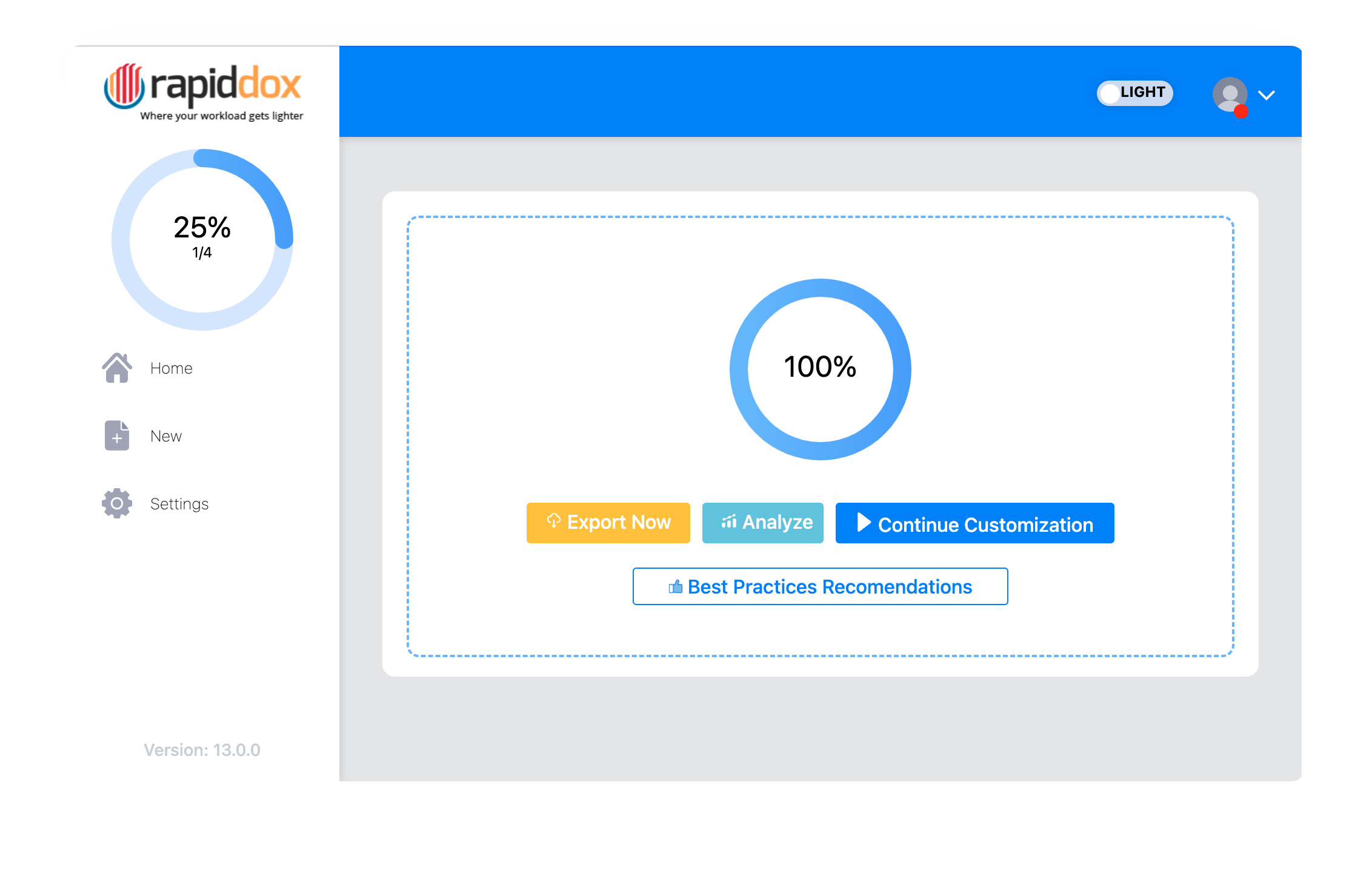
When RapidDox finishes processing a file, the results screen offers three actions — Export Now, Analyze, and Continue Customization. Click Analyze to open the Analyse panel, where you can read and search everything RapidDox extracted before you commit to an export. Analyse is read-only: it never changes your file or your output.
.twb .twbx .tds .tdsx), Tableau Prep flows (.tfl .tflx), and Power BI files (.pbit .pbix). The only thing that changes between them is the list of sections you can drill into (see Sections you can drill into).Opening Analyse
After processing completes, click the Analyze button on the results screen. The Analyse panel opens with a copy of the full generated document and two ways to search it. Use Go back at any time to return to the results screen and continue to export or customisation.
Two ways to search
The panel gives you two independent tools:
| Tool | What it does | Scope |
|---|---|---|
| Global Search | Highlights every match as you type and lets you step through results. | The entire generated document (all sections at once). |
| Search in specific sections | Shows one chosen section as a sortable, paginated table with a filter box on every column. | The one section you pick from the dropdown. |
Global Search
Type into the Global Search box and RapidDox highlights every match across the whole document. A counter shows how many matches were found (for example, "7 matches"), and the « / » buttons jump to the previous / next match — scrolling it into view and outlining the current one. Click × to clear the search and remove the highlights.
- Matches the start of words. A search term matches from the beginning of a word — for example,
calcmatches "calculation", but a fragment from the middle of a word will not. - Case- and accent-insensitive. Capitalisation and accented characters are ignored when matching.
Search in specific sections
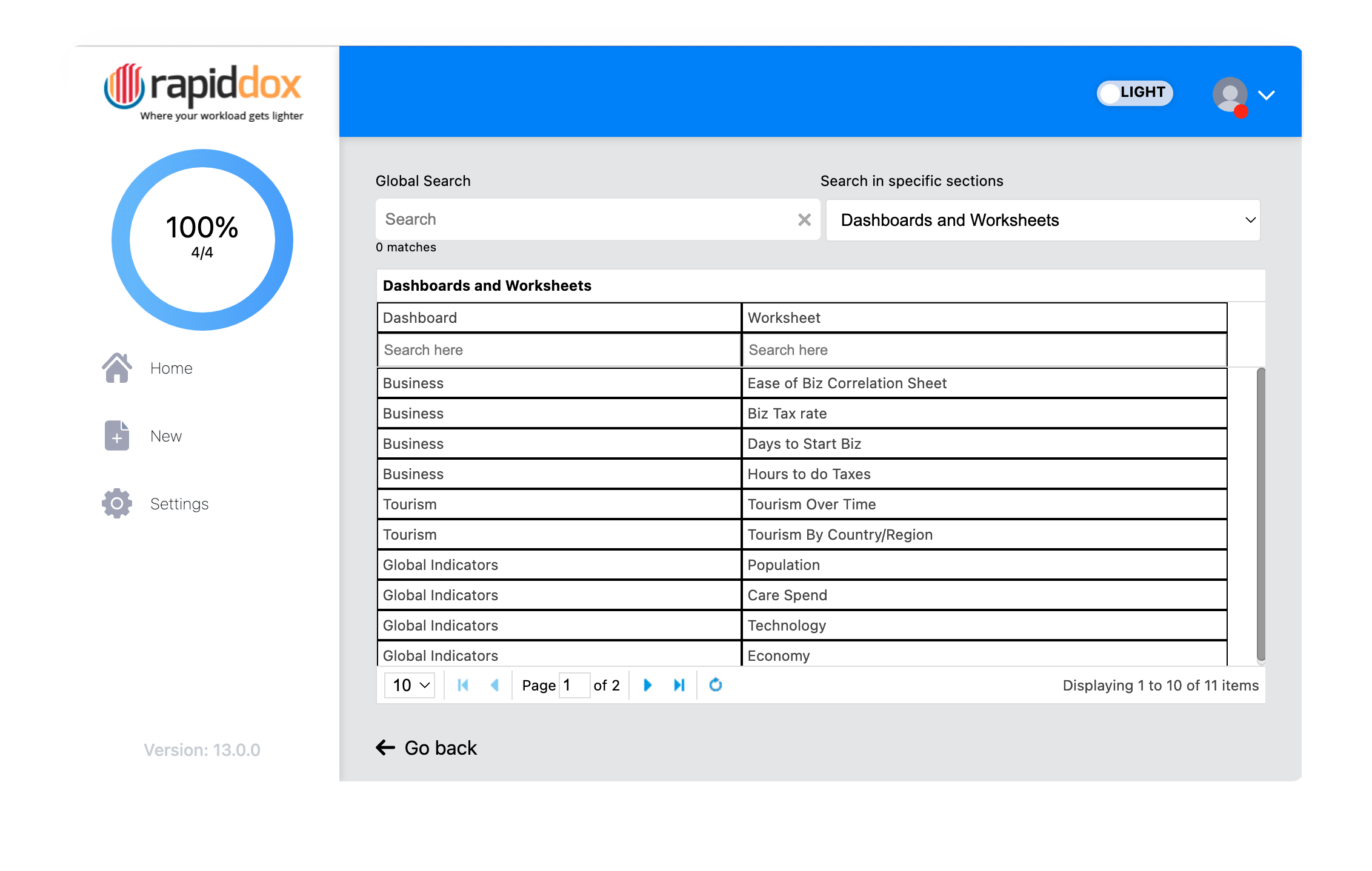
Pick a section from the Search in specific sections dropdown. RapidDox replaces the document view with just that section, rendered as a data table:
- Per-column filters. Each column has a filter box — type into it to narrow the rows to matching values.
- Pagination. Long sections are split into pages so large workbooks and flows stay responsive.
- Empty sections. If the file contains nothing for the chosen section, RapidDox shows "No Data Found".
Choosing a section and using Global Search are separate actions — the dropdown gives you a focused, filterable table for one section, while Global Search highlights text across the full document view.
Sections you can drill into
The dropdown contents depend on the file you processed.
Tableau workbook (.twb / .twbx)
Fifteen sections:
- Data Source
- Custom SQL
- Dashboards and Worksheets
- Logins Used
- Tables and Fields
- Field used in Dashboards and Worksheets
- Calculated Fields
- Groups
- Hierarchies
- Parameters
- Sets
- Unused Fields
- Dashboard Filters
- Dashboard Actions
- Worksheet Blends
Tableau data source (.tds / .tdsx)
A data source has no dashboards or worksheets, so the six workbook-only sections — Dashboards and Worksheets, Logins Used, Unused Fields, Dashboard Filters, Dashboard Actions, and Worksheet Blends — are not shown. The remaining nine are:
- Data Source
- Custom SQL
- Tables and Fields
- Field used in Dashboards and Worksheets
- Calculated Fields
- Groups
- Hierarchies
- Parameters
- Sets
Tableau Prep (.tfl / .tflx)
Twenty-nine sections covering connections, inputs, outputs, transformation steps, and individual clean-step actions:
- Connections
- Parameters
- Input Steps
- Input Files – Union Filters
- Database Tables – Union Filters
- Input Fields
- Write To Hyper
- Write To Database
- Write To Excel
- Write To CSV
- Write To Data Cloud
- Write To CRM Analytics
- Publish Extract
- Union Steps
- Join Steps
- Pivot Steps
- Aggregate Steps
- Clean Steps
- Remove Column Actions
- Remove Columns Actions
- Rename Column Actions
- Range Filter Actions
- Add Column Actions
- Change Column Type Actions
- Quick Calc Column Actions
- Remap Actions
- Filter Operation Actions
- Bulk Rename Columns Actions
- Rich Null Filter Actions
Power BI (.pbit / .pbix)
Five sections:
- Data Source
- Report Objects and Visuals Used
- Measures & Columns
- Visual Types
- Page Filters
Related
- Desktop App Guide — install, sign in, and generate documentation.
- Workbook Metadata and What Gets Extracted — what each section contains.
- Output & Customisation — export and branding options.