Activate Rapid BI Catalog using the login credentials associated with your app.rapidlens.com account. You can activate via the web UI or via the CLI. Activation ends when you create your admin password; once that is done, continue to Post-installation Setup to configure the application.
Before you begin
Rapid BI Catalog must already be installed and reachable over HTTPS. See Installation and HTTPS Configuration.
Via Web UI
Online — Machines With Internet Access
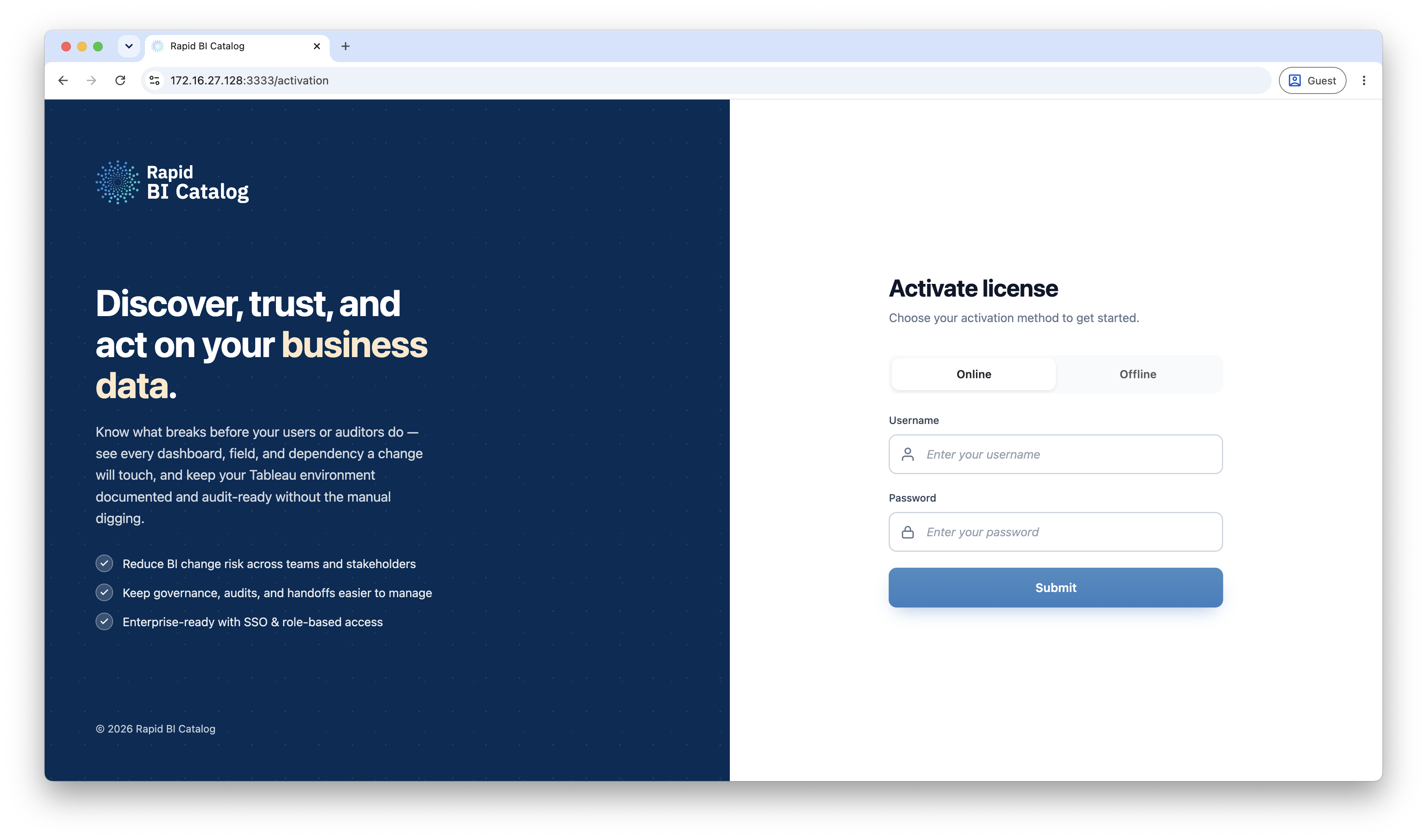
- Open the Rapid BI Catalog web page at
<server-ip>:3333.
Replace<server-ip>with the IP address or hostname of your server. - Enter your app.rapidlens.com username and password, then click Submit.
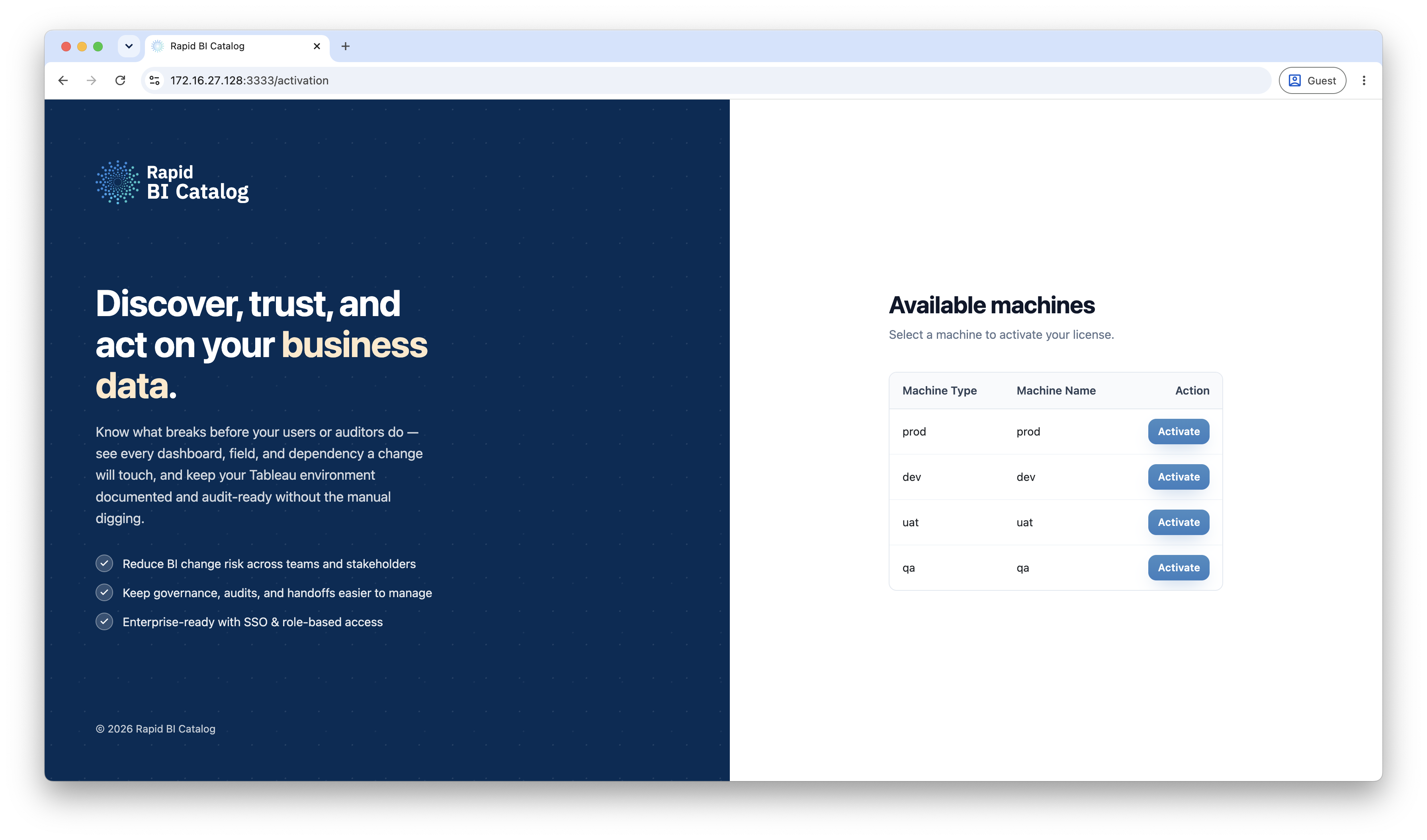
- Select the machine you want to activate.
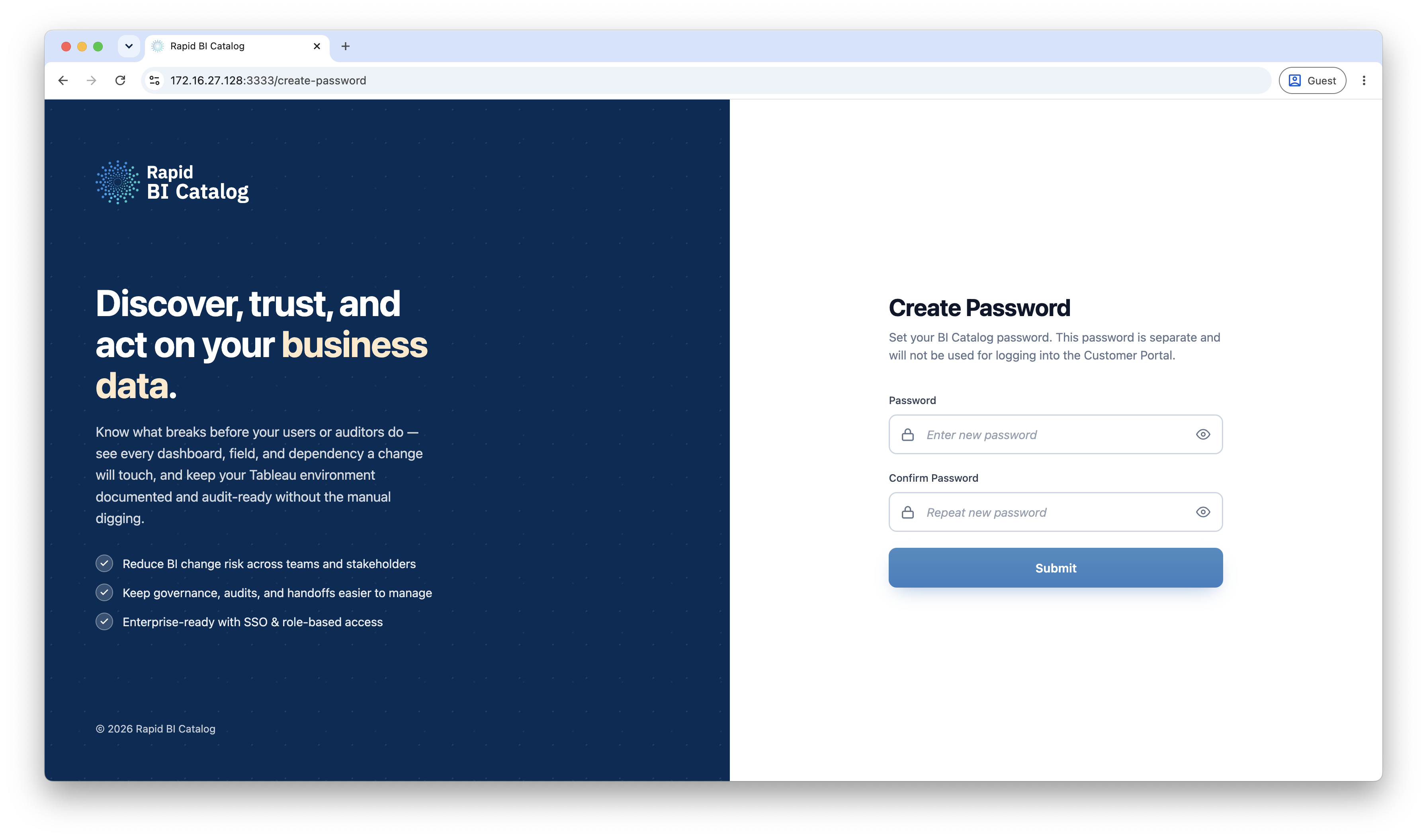
- After successful activation, the Create Password page appears. Create a password for your Rapid BI Catalog admin account.
Note
This password is specific to the Rapid BI Catalog application and is separate from your app.rapidlens.com Customer Portal password. If forgotten, it can be reset by another Admin or via the CLI — see Password Reset.
Activation complete
Your machine is now activated. Continue to Post-installation Setup to set your default directories, application domain, email, and authentication mode.
Offline — Machines Without Internet Access
Prerequisites: a separate machine with internet access, and your app.rapidlens.com credentials.
- Open the Rapid BI Catalog web page at
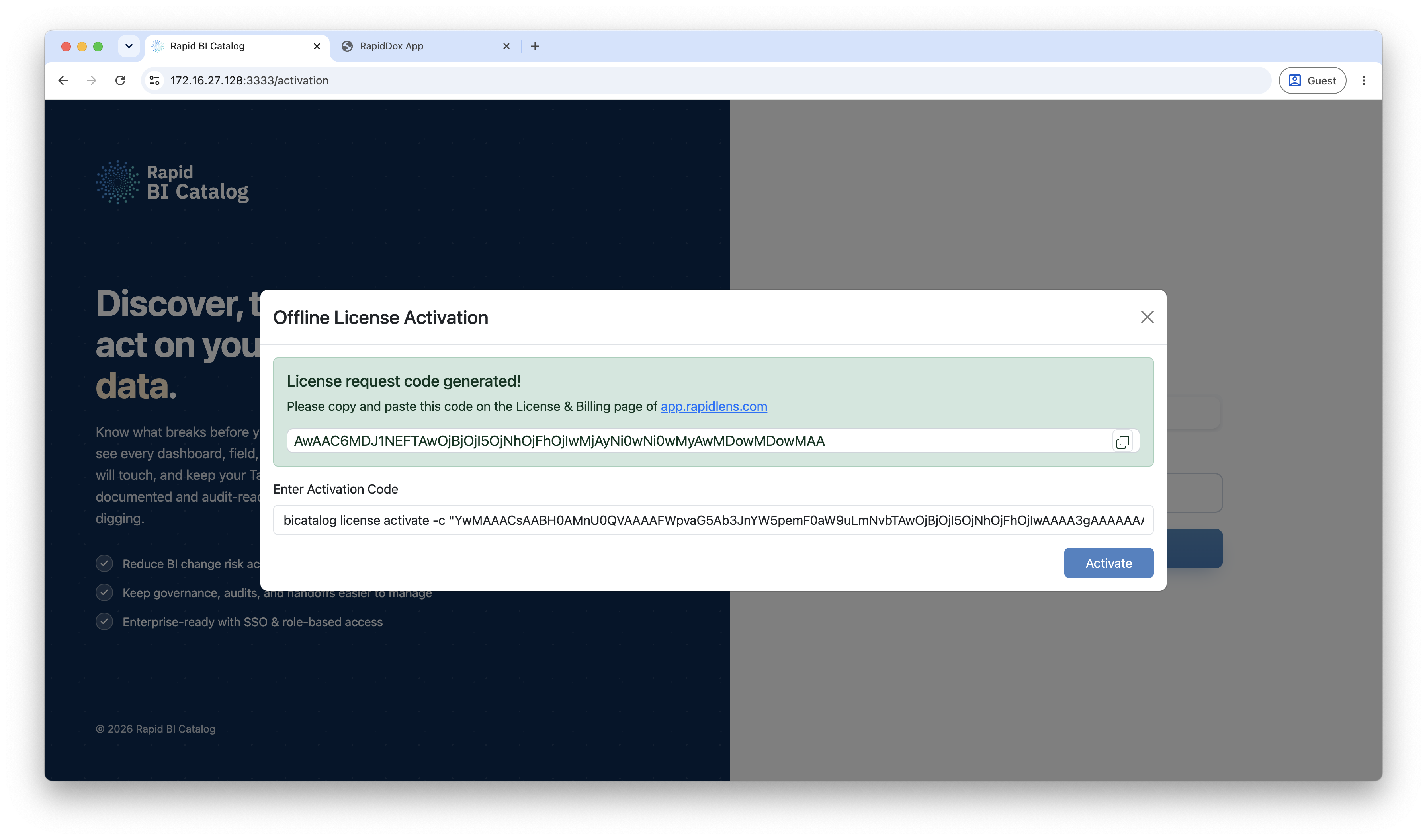
<server-ip>:3333and select the Offline activation option. - Enter your username and click Submit.
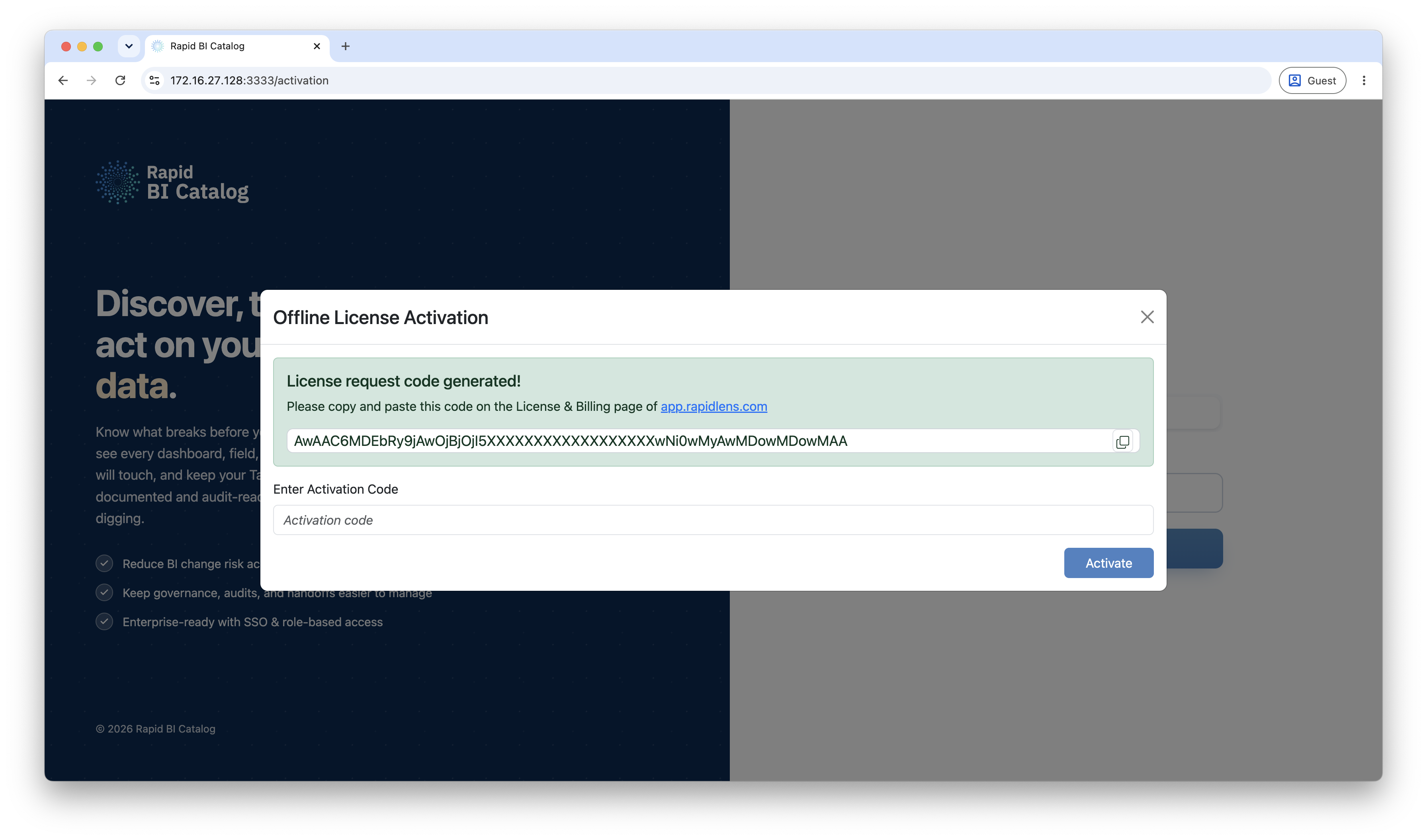
- Copy the License Request Code shown on screen.
- From a machine with internet access, log on to app.rapidlens.com and go to License & Billing → Rapid BI Catalog.
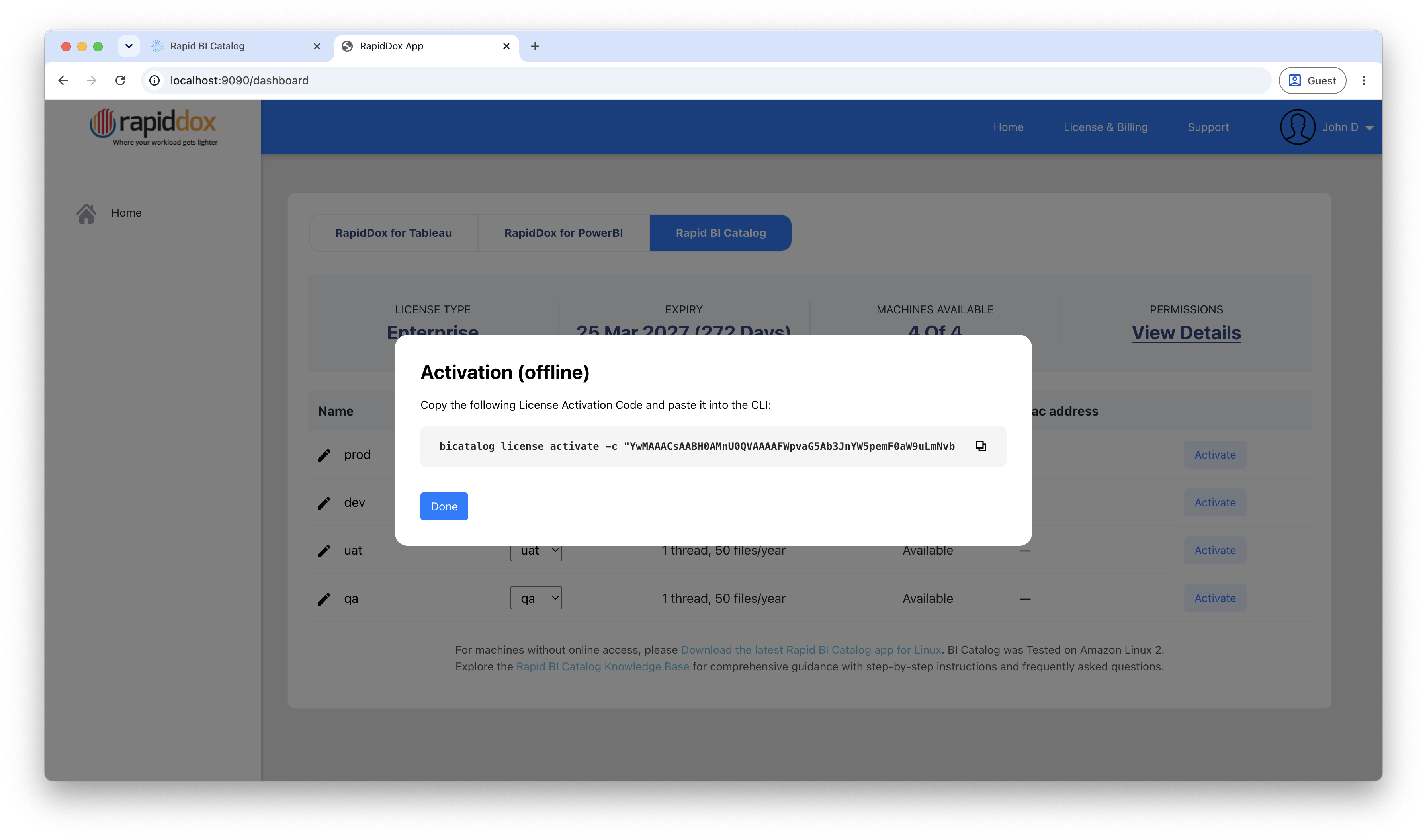
- Select the machine to activate → Machines without Internet access tab → Activate using License Request Code.
- Paste the Request Code, click Generate a License Activation Code, and copy the generated code.
- Back on the server, paste the License Activation Code into the activation popup and click Submit.
- On the Create Password page, create your admin password.
Activation complete
Continue to Post-installation Setup.
Via CLI
Online — Machines With Internet Access
Use your app.rapidlens.com credentials:
Command
Terminal
bicatalog login -u <username>You are prompted to enter your password securely — it is never passed on the command line. After login, choose the machine to activate:
Example
Terminal
bicatalog login -u john@organization.com
Enter password: ********
Available machines to activate:
| ID | Machine type | Machine name
| 1 | production | (prod)
| 2 | development | (dev)
| 3 | uat | (uat)
| 4 | qa | (qa)
Enter the machine ID to use: 1
[INFO] License activatedNote
The password is encrypted and stored on the local file system.
Offline — Machines Without Internet Access
Step 1 — Generate a License Request Code
On the server, generate a request code for your account:
Terminal
bicatalog license offline -u john@organization.comCopy the License Request Code.
Step 2 — Generate an Activation Code via the Portal
From a machine with internet access:
- Log on to app.rapidlens.com → License & Billing → Rapid BI Catalog, and click Activate for your machine.
- Select the Machines without Internet access tab, then click Activate using License Request Code.
- Paste the License Request Code and click Generate a License Activation Code.
- Copy the activation command (with the code) shown by the portal.
Step 3 — Activate on the Server
Terminal
bicatalog license activate -c "<activation_code>"After activation, create your admin password when prompted to finish.
Next Steps
- Complete first-run setup: Post-installation Setup
- Configure your environment: Settings
- Connect to Tableau: BI Server Configuration
- Start your first run: Getting Started