License Status Banner
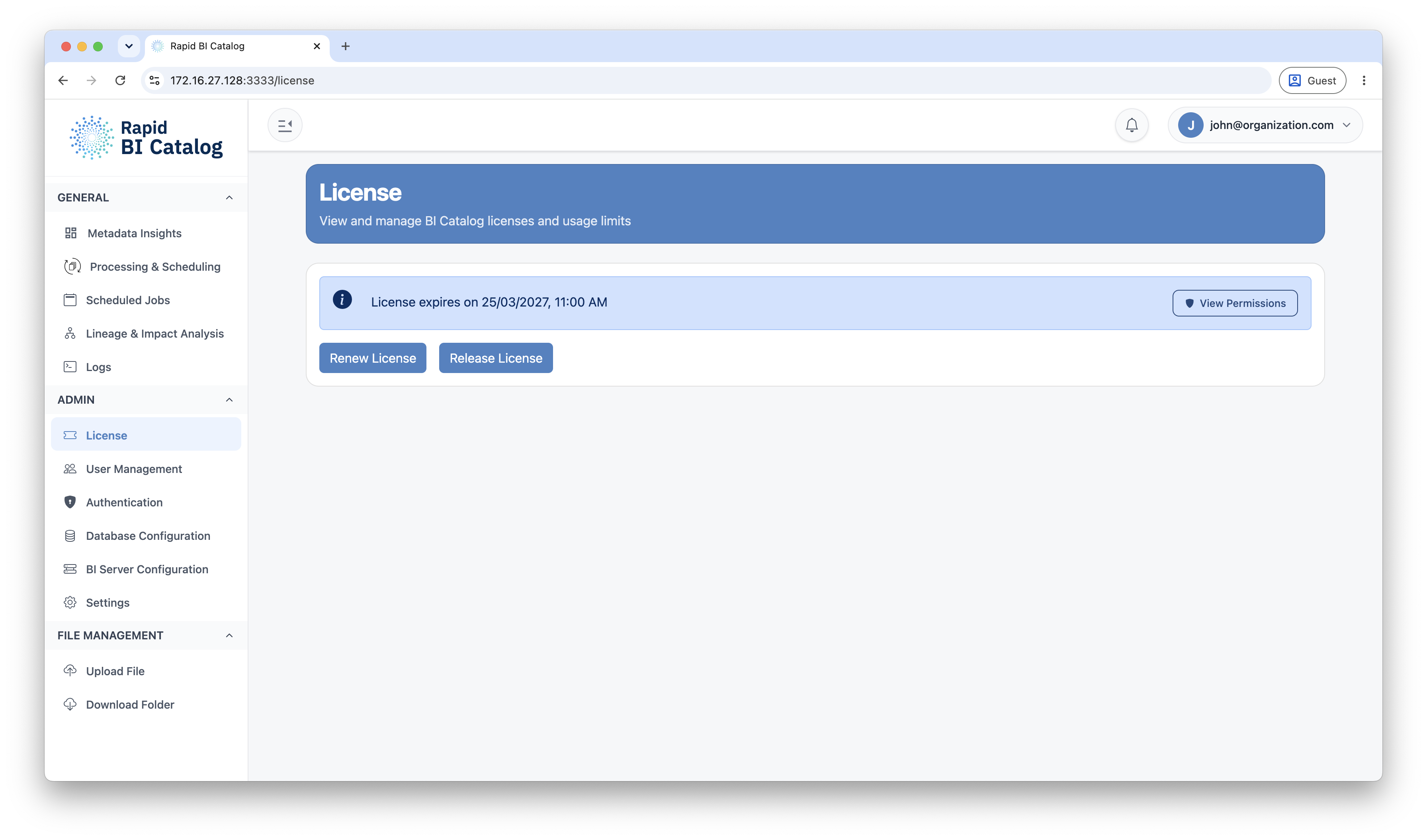
At the top of the page, a status banner displays the key details of the active license:
| Information | Description |
|---|---|
| Expiry Date | The date on which the current license expires. If expired, the banner turns red. |
| File Usage | A breakdown of files processed in the current period vs. the allowed maximum. |
File Usage
If the license includes file processing limits, the banner displays a usage summary for the current billing period:
| Metric | Description |
|---|---|
| Total Files | Overall files processed across all methods |
| Manual | Files processed manually |
| Scheduled | Files processed via scheduled jobs |
| Tableau | Files processed from a connected Tableau Server/Cloud |
Each metric is displayed as used / maximum (e.g., 45/100). If a limit is set to Unlimited, that category does not appear.
Viewing Permissions
Click View Permissions in the license status banner to open the Permissions modal. It displays a complete breakdown of all feature entitlements in your license, organized into groups (Core, Processing, Integrations, etc.).
| Value type | Display |
|---|---|
| Enabled | ✅ Green check icon |
| Disabled | ❌ Red cross icon |
| Numeric limit | The number (e.g., 10) |
| Unlimited | Displayed in blue as Unlimited |
| Special values | Human-readable labels (e.g., lineage granularity level) |
Renewing the License
Click the Renew License button to check for and apply the latest license entitlements.
Online Renewal
If the machine was activated via the online process, clicking Renew License immediately contacts the license server and renews automatically. A success notification confirms the renewal.
Offline Renewal
If the machine uses offline activation, clicking Renew License opens the Offline License Renew modal:
- Obtain a Renew Code from the customer portal at app.rapidlens.com.
- Paste the renew code into the Renew Code field in the modal.
- Click Submit.
Releasing the License
Click Release License to deactivate the license on the current machine and free it for use on another machine.
Online Release
If the machine is internet-connected, clicking Release License immediately contacts the license server and releases the license. The application resets to the activation state automatically.
Offline Release
If the machine does not have internet access:
- Click Release License — this generates a Release Code.
- Copy the Release Code using the clipboard icon in the Offline License Release modal.
- Navigate to app.rapidlens.com and paste the Release Code on the License & Billing page to complete the release.
- Click Close in the modal to finish.
Next Steps
- Manage users and roles: User Management
- Uninstall or deactivate: Uninstall & Deactivation