Standard vs Full Uninstall
Two uninstall options affect your data differently:
| Operation | What happens to your data |
|---|---|
| Standard uninstall | Removes the service and binaries but keeps all data — configuration, scheduled jobs, users, licence, and all other application data. Use it to reinstall or upgrade without losing anything. |
| Full uninstall | Deletes all application data, including the keys that encrypt it — irreversible. |
Full uninstall is irreversible
A full uninstall removes all application data, which will not be recoverable unless you have backed it up first. See Backup & Disaster Recovery.
Standard Uninstall
Use a Standard Uninstall when you:
- Want to reinstall Rapid BI Catalog without losing user data or scheduled jobs.
- Want to temporarily remove the application but retain your configurations.
Terminal
curl https://app.rapidlens.com/releases-bicatalog/v8.0.0/uninstall_standard.sh | shThis will uninstall Rapid BI Catalog while preserving configurations, scheduled jobs, user and license data.
Full Uninstall (Complete Removal)
Use a Full Uninstall when you:
- Are permanently decommissioning the application.
- Want to remove all associated application data and configurations from the system.
Warning — Data Loss
A Full Uninstall will permanently remove all application data stored on the server, including application configuration, scheduled jobs, and user data.
Step 1: Release Your License
Before uninstalling, release your license — especially if you intend to reuse it on a different machine or reinstall on the same machine in the future.
On Machines With Internet Access
- Go to the Rapid BI Catalog webpage.
- Go to the License tab from the left panel.
- Click Release License. You'll be logged out automatically.
On Machines Without Internet Access
- Go to the Rapid BI Catalog webpage.
- Go to the License tab from the left panel.
- Click Release License.
- You'll be prompted with a License Release Code. Copy this code.
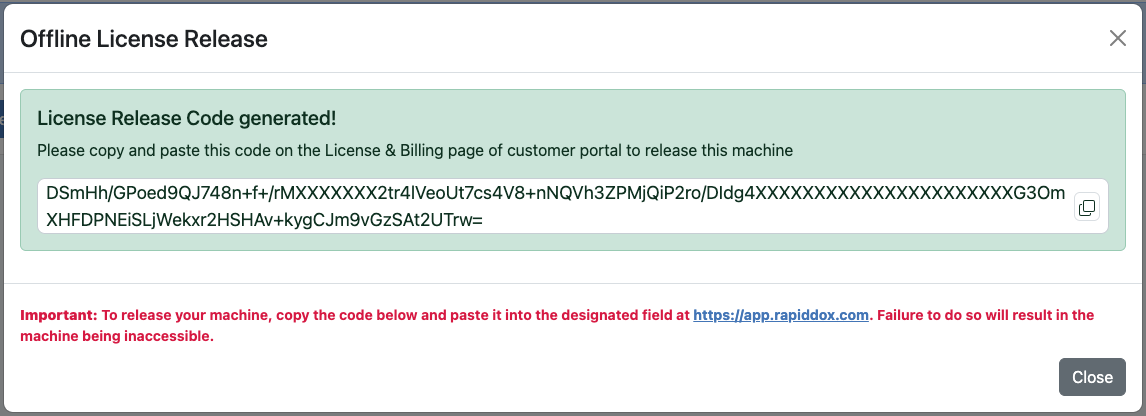
CLI Alternative
You can also run
bicatalog license release to generate the license release code via CLI.- From a machine with internet access, log on to app.rapidlens.com.
- Go to License & Billing → Rapid BI Catalog tab.
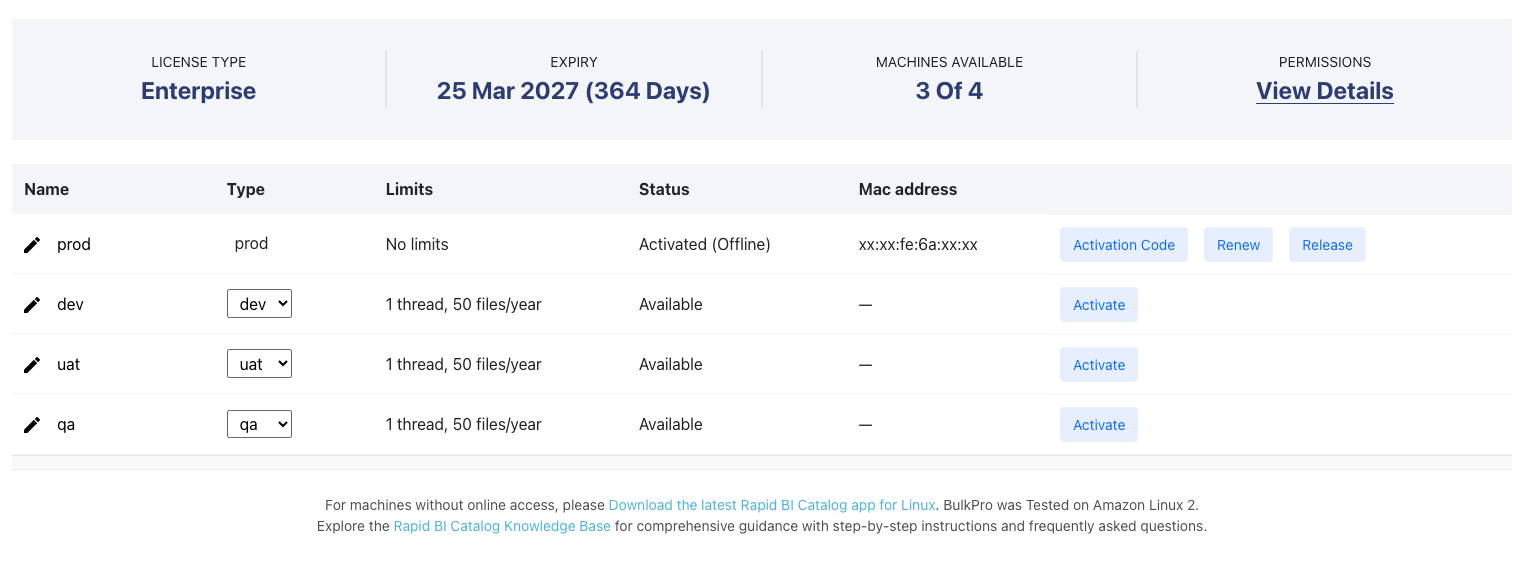
- Click Release for the machine being released.
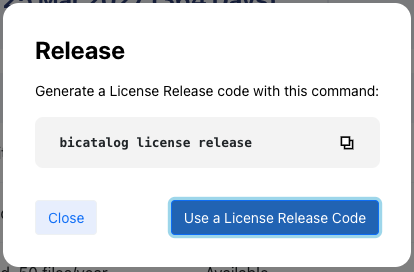
- Click Use a License Release Code.
- Paste the License Release Code and click Release.
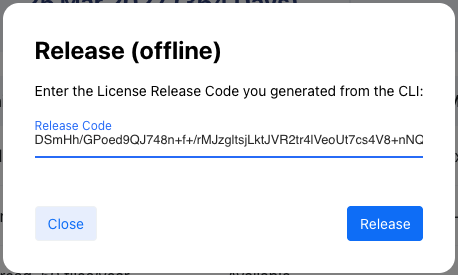
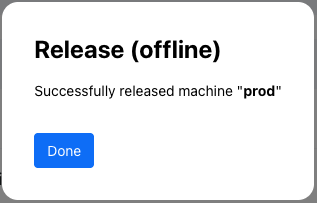
- Your license is now successfully released.
- Proceed to the Rapid BI Catalog webpage and close the Offline License Release modal. You'll be logged out automatically.
Step 2: Full Uninstallation
On Machines With Internet Access
Terminal
curl https://app.rapidlens.com/releases-bicatalog/v8.0.0/uninstall_full.sh | shOn Machines Without Internet Access
- From a machine with internet access, download the uninstall script from https://app.rapidlens.com/releases-bicatalog/v8.0.0/uninstall_full.sh.
- Transfer the script to the server where Rapid BI Catalog is installed.
- Run it:
Terminal
./uninstall_full.shNext Steps
- Release or renew your licence: License Management
- Back up before decommissioning: Backup & Disaster Recovery