Rapid BI Catalog supports time-based one-time password (TOTP) multi-factor authentication for an extra layer of security at sign-in. You enroll with any standard authenticator app.
How MFA Works
Once enrolled, a user enters their username and password as usual, then a 6-digit code from their authenticator app to complete sign-in. Each user manages their own enrollment; administrators can set an organisation-wide requirement and reset a user's MFA if they lose their device.
Enrolling in MFA
- Open your profile and choose to set up MFA.
- Scan the displayed QR code with your authenticator app (or enter the setup key manually).
- Enter the current 6-digit code from the app to verify and activate MFA.
To turn MFA off again, use the Disable MFA option — unless an administrator has made MFA mandatory (see below).
Requiring MFA for All Users
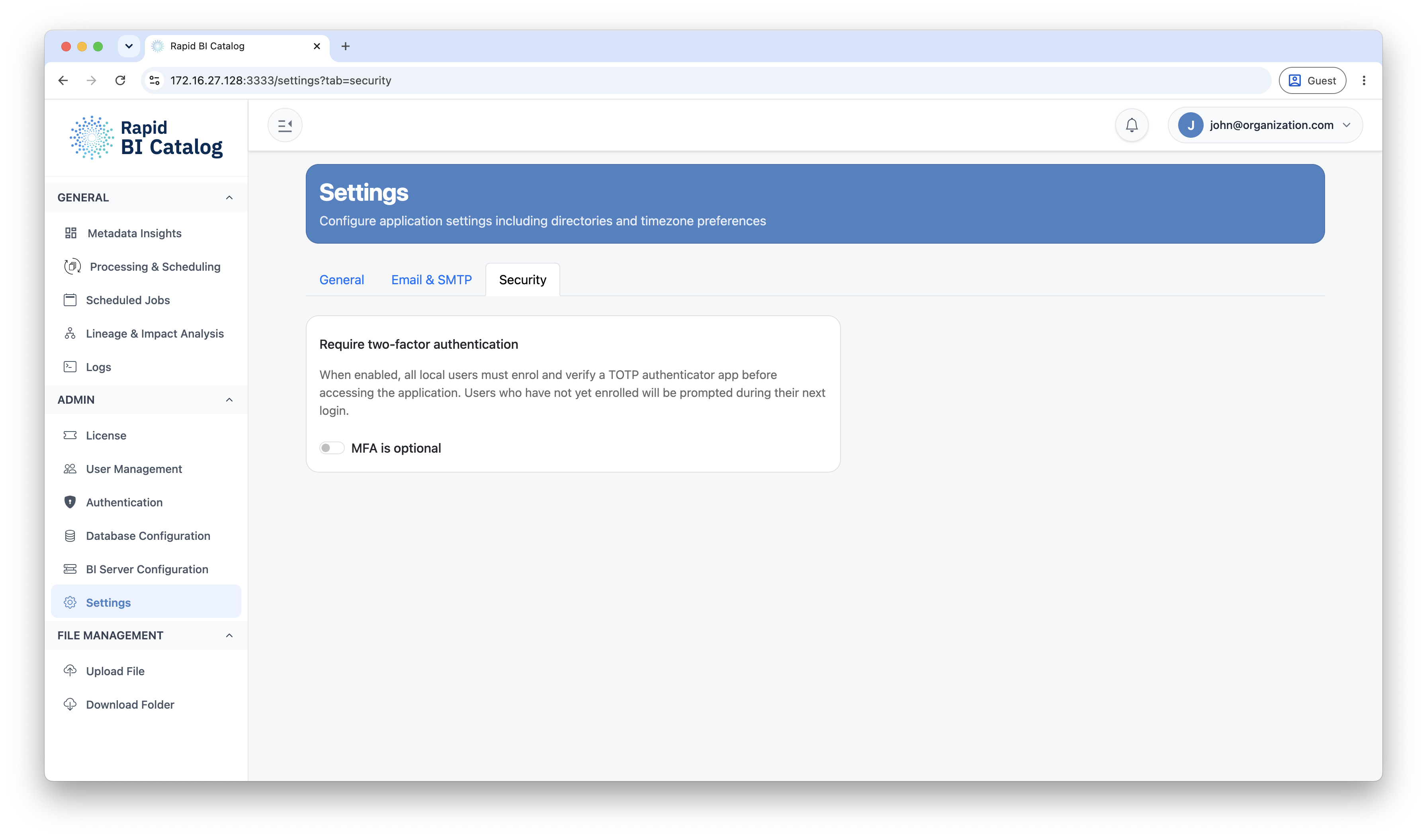
An administrator can enable MFA required for all users. When this is on, any local user who has not yet enrolled is prompted to set up MFA at their next login before they can continue, and users cannot disable it.
MFA and SSO-Only Deployments
Resetting a User's MFA
If a user loses access to their authenticator device, an administrator can reset their MFAfrom User Management. The user is then prompted to enroll again on their next sign-in (immediately, if MFA is required).
Next Steps
- Manage users and reset MFA: User Management
- Configure single sign-on: SSO Configuration
- Review role permissions: User Roles & Access Control